Notion · AI & Automation
Forward Emails to Notion: Automate Task Creation
Learn how to automatically create tasks in Notion by forwarding emails. Save time with this simple Make.com automation workflow.
Daniel Canosa ·
TL;DR: You can automatically create Notion tasks from emails by forwarding them to a Make.com Mail Hook address. The automation uses ChatGPT to extract the task, due date, sender, and email content, then creates a properly formatted task in your Notion database with full context. Setup takes about 10 minutes and eliminates manual copying between your inbox and task manager.
Key Takeaways
- Forwarding an email to a Make.com Mail Hook address triggers an automation that reads the full email thread and creates a structured task in Notion.
- ChatGPT (GPT-4.1) parses the email to extract the task description, due date, sender name, and subject line, returning everything in a clean JSON format.
- If no explicit due date is mentioned in the email, the system defaults to two business days from the current date.
- Providing example input/output pairs in the ChatGPT system prompt significantly improves the consistency and reliability of email parsing.
- The resulting Notion task includes the full email body and subject line, so you can search for context and reply without switching back to your inbox.
Picture this: you get an email that needs action, but not right now.
You probably snooze it or manually create a task somewhere else.
Maybe you copy the subject line so you can find the email later.
But honestly, this whole process disrupts your day and creates friction between your inbox and your task manager.
I hate manual processes like this.
That's why I built this automation that forwards any email to Notion and automatically creates a task with all the context I need.
Let me show you exactly how it works.
The Email-to-Task Automation in Action
When I receive an email that needs follow-up, I simply press F to forward it to a special Make.com email address.
I can add a note like "to-do today" or just "urgent" in the forward.
The system reads the entire email thread, understands the context, and creates a properly formatted task in my Notion database.
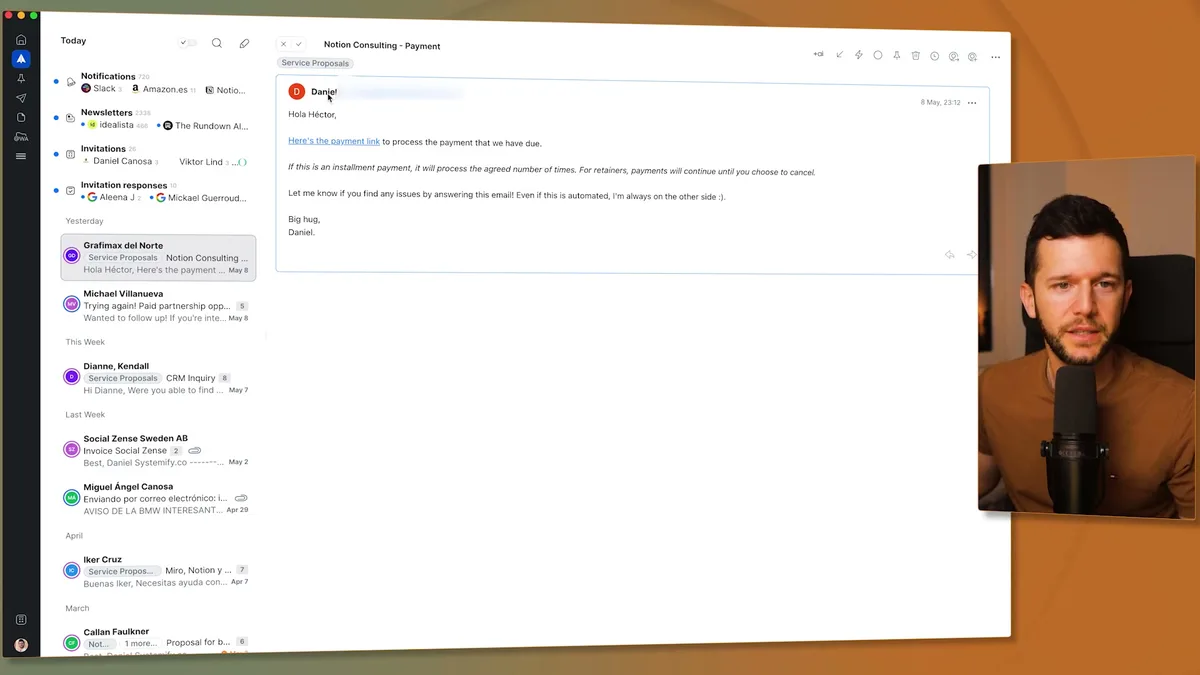
The automation extracts the key information I need: what task needs to be done, who it's from, when it's due, and includes the full email content for context.
No manual copying and pasting.
No switching between apps.
No forgetting important details.
The task appears in my Notion workspace with a due date (either extracted from the email or set to two business days from now), the sender's name, and the complete email thread.
This means I can stay in my task manager instead of jumping back to email to remember what someone wanted.
Building the Make.com Workflow
The automation runs on three main components: a Mail Hook, ChatGPT processing, and Notion integration.
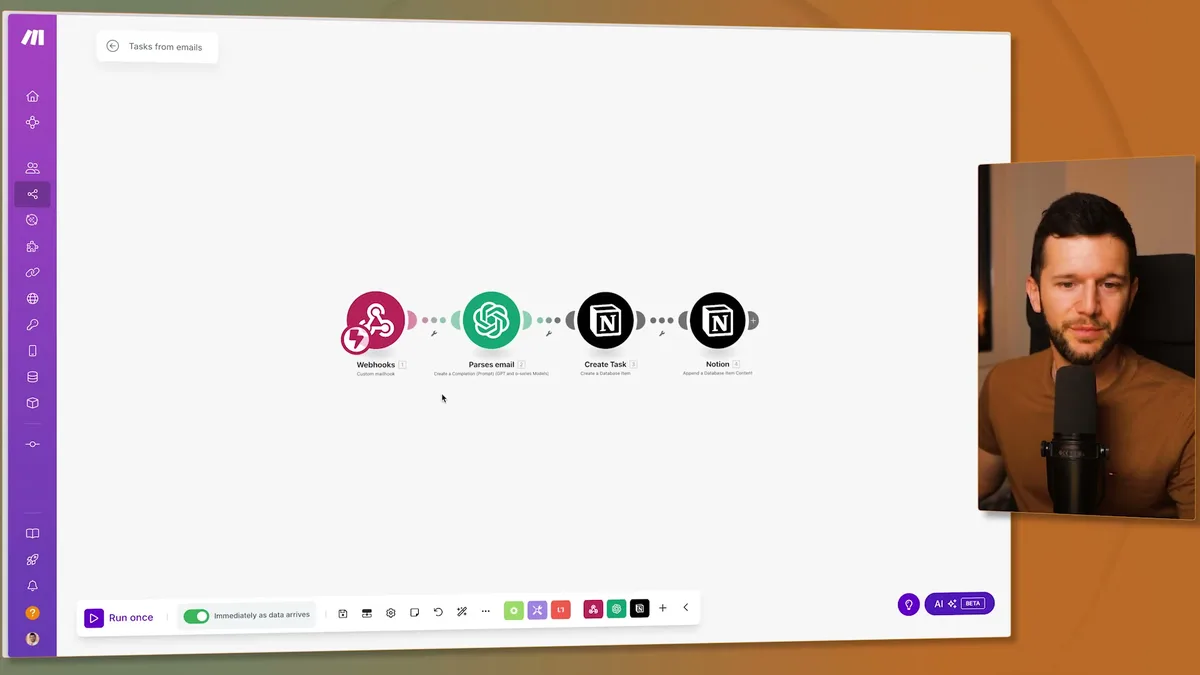
The Mail Hook acts like a webhook but for emails.
It gives you a unique email address where you can forward messages.
When you send an email to this address, the hook captures everything: the subject, body, HTML content, sender information, recipient details, and the entire email thread.
The ChatGPT module does the heavy lifting.
This is where the magic happens because it reads through potentially long email threads and extracts exactly what I need.
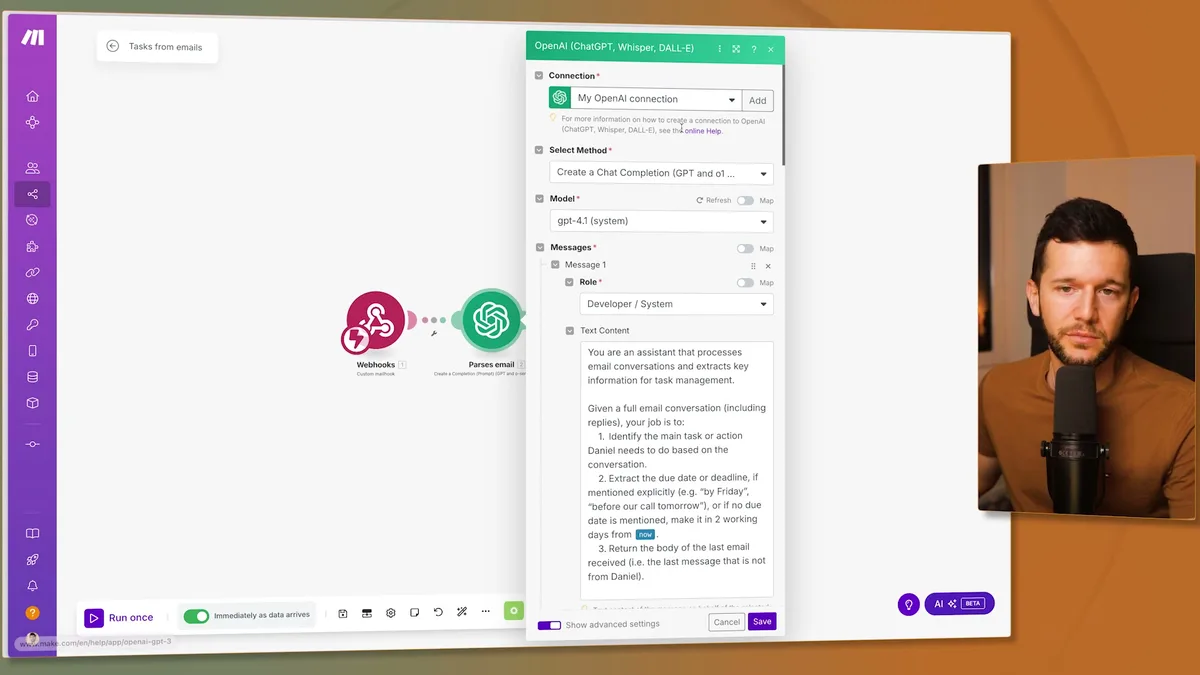
I use GPT-4.1 because it's cost-effective for this type of task processing.
The key is in the system prompt that teaches ChatGPT exactly how to analyze emails and what information to extract.
The system prompt includes specific instructions:
Extract the main task Daniel needs to complete based on the conversation.
Find the due date if mentioned explicitly (like "by Friday" or "before our call tomorrow").
If no due date exists, set it to two working days from now.
Return only the body of the last email received (not from me).
Output everything in a specific JSON format.
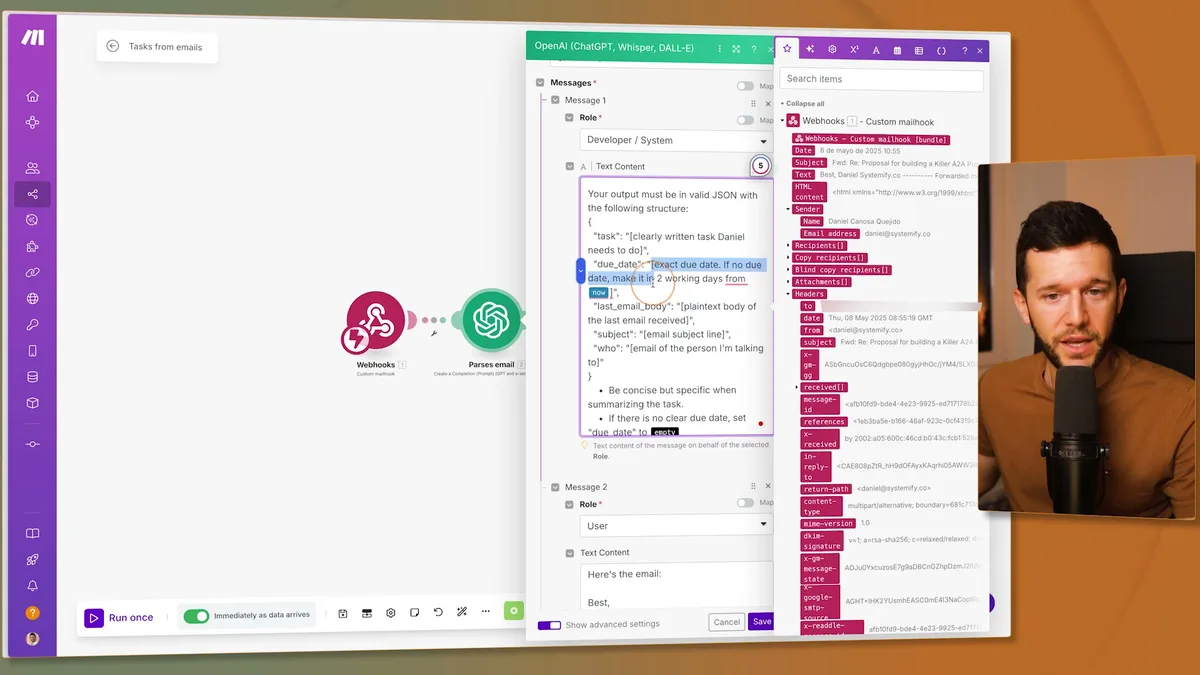
The JSON structure ensures I can map each piece of information to the right field in Notion: task name, due date, email body, subject line, and who sent it.
Training ChatGPT with examples makes it more reliable.
I set up a conversation flow within the module that shows ChatGPT exactly how to respond.
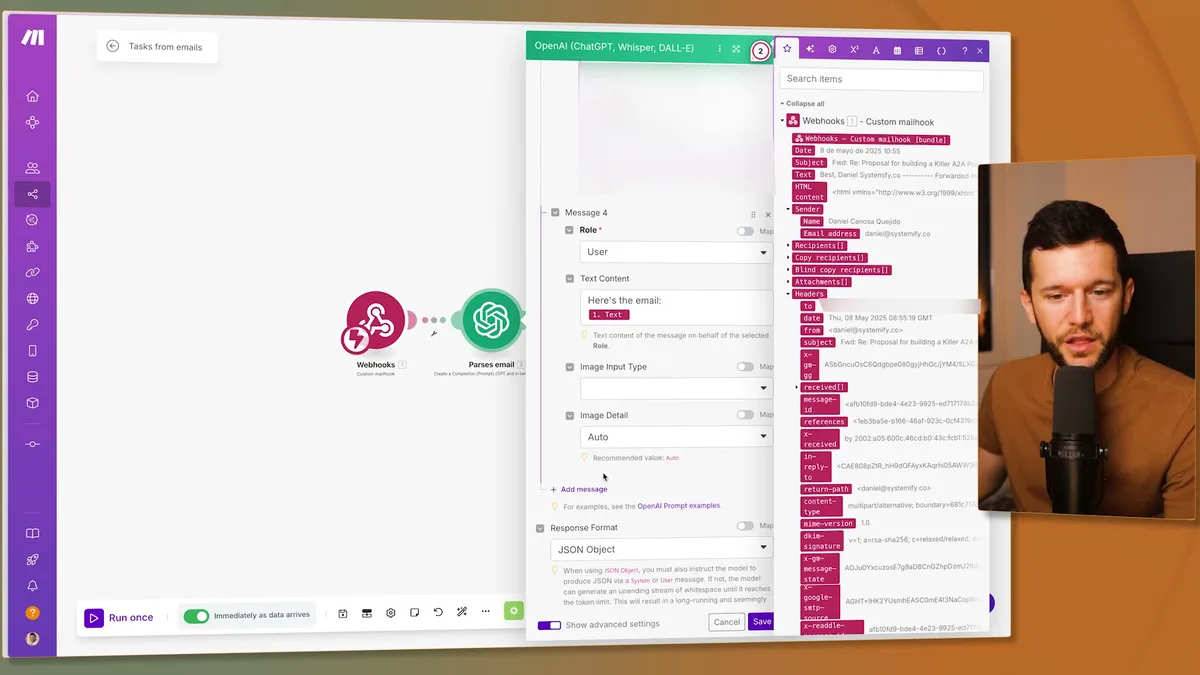
This conversation includes a sample email and the exact JSON response I want.
By showing ChatGPT the expected input and output format, it follows the pattern consistently.
Bear in mind, AI models sometimes ignore instructions, so providing concrete examples helps maintain consistency.
Mapping the Results to Notion
Once ChatGPT processes the email and returns structured data, the final step connects everything to Notion.
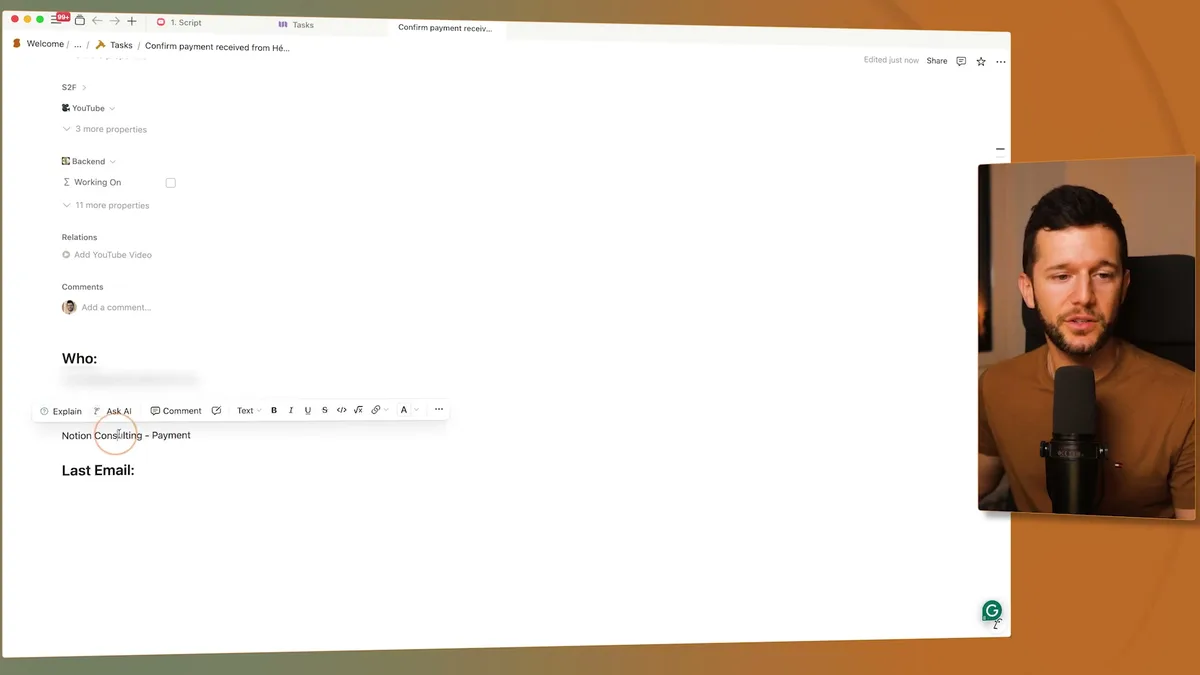
The parsed JSON gives me clean variables to work with.
Instead of raw JSON text, I get individual fields: task, due_date, last_email_body, subject, and who.
This parsing step is crucial because it allows me to map specific information to specific fields in my Notion database.
The Notion module creates the task with proper field mapping.
The task description comes from ChatGPT's analysis of what needs to be done.
The status defaults to a standard value in my workflow.
The assignee is automatically set to me.
The due date uses ChatGPT's extracted or calculated date.
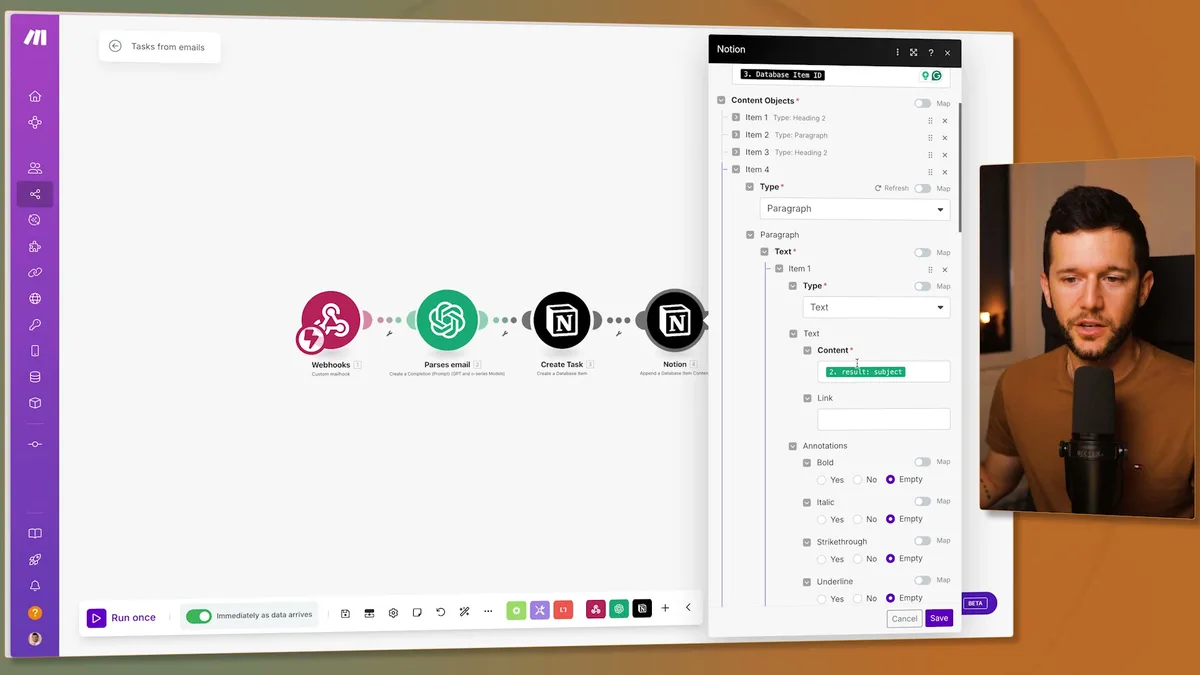
The task body includes all the email context I might need later.
I append the original email content, subject line, and sender information to the task.
This formatting uses Notion's content blocks: headings for organization and paragraphs for the actual content.
Having this context means I can search for the original subject line if I need to reply to the email later.
The entire setup probably takes 10 minutes to build once you have the system prompt (which I've shared in the video).
This automation eliminates the friction between email and task management.
Every email that needs action becomes a properly formatted task with context.
No more losing track of important follow-ups.
No more manual copying between systems.
Your task manager becomes the single source of truth for what needs to get done, not your inbox.
Ready to see where your business stands with AI and automation? Take our AI Readiness Scorecard to find out.
Frequently Asked Questions
How much does this email-to-Notion automation cost to run?
The main costs are your Make.com plan (which covers the automation operations) and OpenAI API usage for ChatGPT processing. Using GPT-4.1 for email parsing is cost-effective, typically costing fractions of a cent per email. For most businesses processing a few emails per day, the total cost is minimal.
Can I use this with email providers other than Gmail?
Yes. The Make.com Mail Hook works with any email provider because it gives you a unique email address to forward messages to. Whether you use Gmail, Outlook, Apple Mail, or any other client, you simply forward the email to the Mail Hook address and the automation handles the rest.
What if ChatGPT misinterprets the email or extracts the wrong task?
Providing concrete examples in the system prompt significantly reduces errors. You can also add a note when forwarding (like "to-do today" or "follow up on invoice") to give the AI more context. Since tasks are created in Notion where you review them, you can always edit the task description before acting on it.
Get more like this in your inbox
AI implementation insights for service business founders. No fluff.