Notion
How to Create Notion Client Portals for Service Businesses
Learn how to build client portals in Notion using page-level access. Keep clients updated without endless emails in just minutes.
Daniel Canosa ·
TL;DR: You can build client portals in Notion using the page-level access feature combined with three connected databases (Clients, Projects, Tasks). Notion automations propagate client permissions from the client record down to projects and tasks automatically. Clients log in and see only their projects and tasks, can update statuses directly, and can even submit new tasks through an embedded Tally form connected via Make.com.
Key Takeaways
- Notion's page-level access feature lets you control database visibility per entry based on a person property, making secure client portals possible without separate workspaces.
- Three connected databases (Clients, Projects, Tasks) pass client permissions down automatically through Notion automations, so every new task inherits the correct access.
- Clients need edit access (not just view access) to the Projects database if you want them to update task statuses, even though they are modifying the Tasks database.
- Page-level access only works with direct person properties, not rollups. You must use automations to copy the client person field from Clients to Projects to Tasks.
- Adding an embedded Tally form with a hidden project ID field lets clients create new tasks directly from their portal, with Make.com handling the Notion task creation in the background.
I've been talking to service business owners for years now, and honestly, one thing comes up constantly.
About 20 to 30% of them need client portals but don't know how to build them properly.
You know the drill. You spend an hour crafting that weekly update email to your client, explaining what you've done, what's next, where things stand.
What if you could skip that email entirely?
What if your client could just check a page anytime and see exactly what's happening with their project, always up to date, without you lifting a finger?
That's where Notion's new page-level access feature comes in, and honestly, it's a game changer for service businesses.
Setting Up Your Client Portal Foundation
The whole system revolves around three connected databases that work together seamlessly.
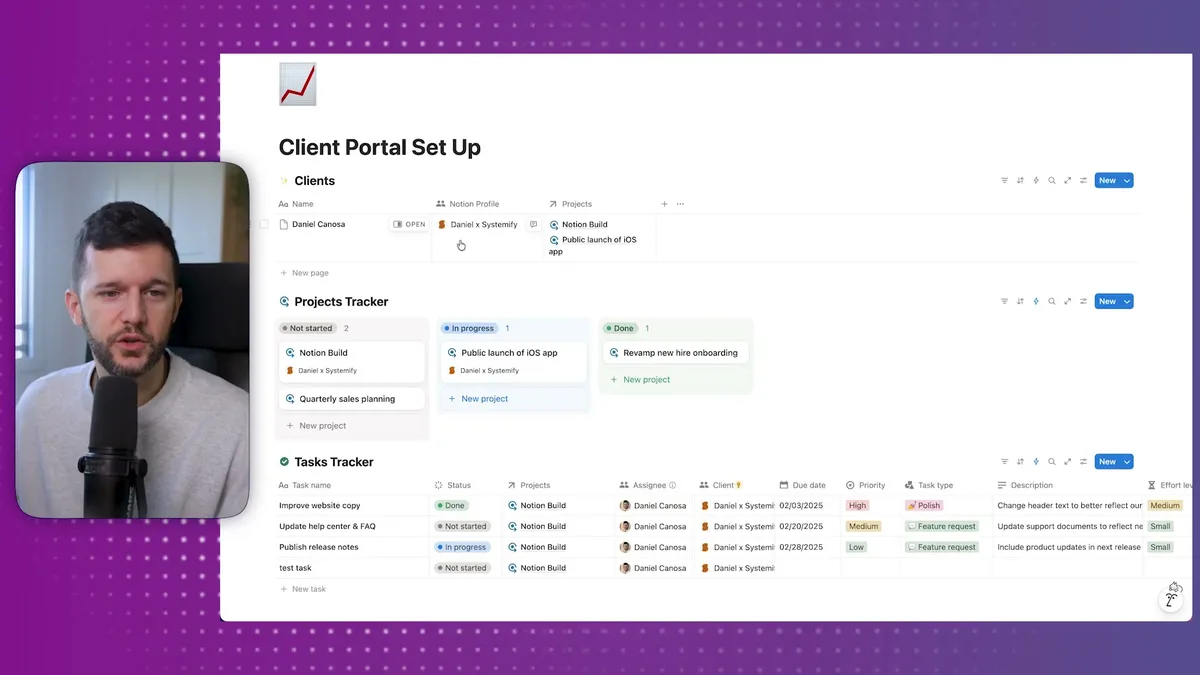
First, you need a Clients database. This is where the magic happens, because you need a person property for each client.
This person property is absolutely critical. It's what Notion uses to control who sees what.
Second, you have a Projects database. Think of this as your way to group tasks for each client.
Third, you have a Tasks database. This connects to projects, which connect to clients.
The goal here is to pass the person information from clients down to projects and tasks automatically.
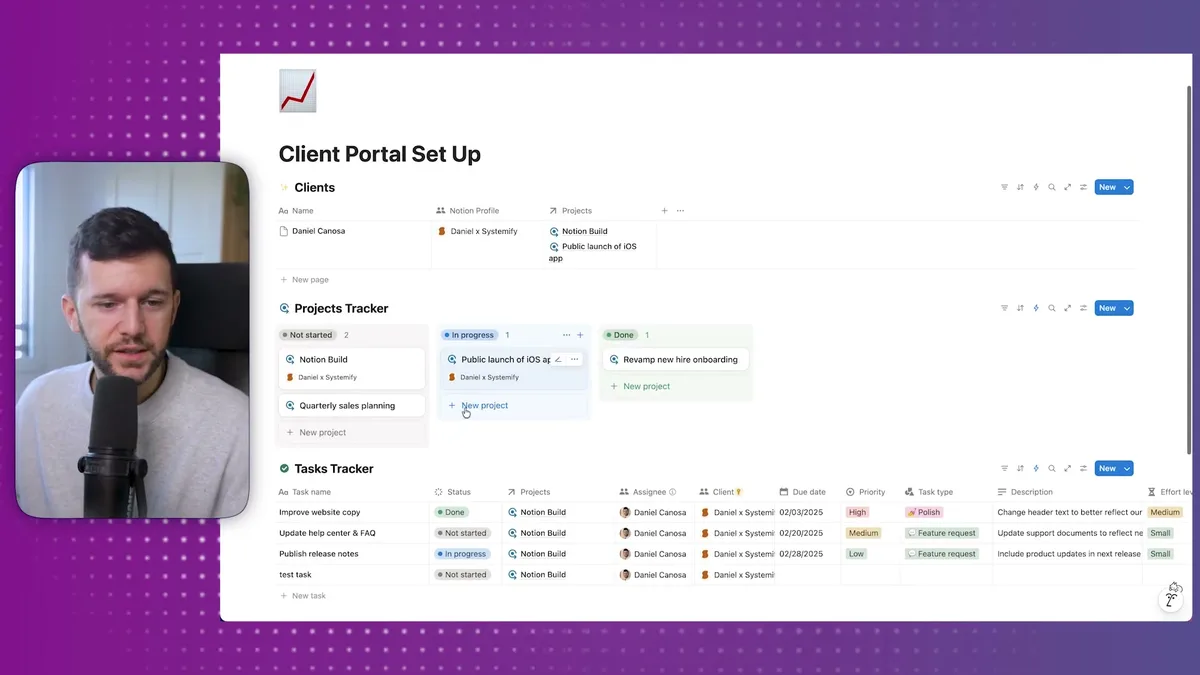
Here's what your client will actually see. They'll only have access to their specific projects and can click through to see all the tasks.
They can even update task statuses themselves, which saves you from those "hey, is this done yet?" messages.
Now, why do we need all these connections? Because of Notion's new page-level access feature.
Before this feature existed, creating safe client portals was basically impossible.
I actually made a video about this three years ago, and back then, it was a mess.
But now, you can control access at the database level. You open your Projects database as a full page, click share, and you'll see the page-level access options.
You can set it so anyone in the client profile property can view, comment, or edit.
Here's something I discovered through testing, and I'm not sure if it's a bug or intentional.
If you want clients to update task statuses, you need to give them edit access to the Projects database. Even though they're modifying the Tasks database, the Projects page seems to govern permissions for the whole view.
I've talked to Notion about this, but for now, edit access is what works.
You'll need to do the same thing for your Tasks database. Open it as a full page, share, and give edit access to anyone in the client property.
One important note about person properties. You might think, "why not use rollups to pull client information into projects and tasks?"
The page-level access feature only works with person properties directly. No rollups allowed.
This means we need Notion automations to copy the client person property down to projects and tasks automatically.
Automating Client Access with Notion Automations
Here's where the real magic happens, and honestly, this is what makes the whole system work without manual effort.
You need two automations. One for projects, one for tasks.
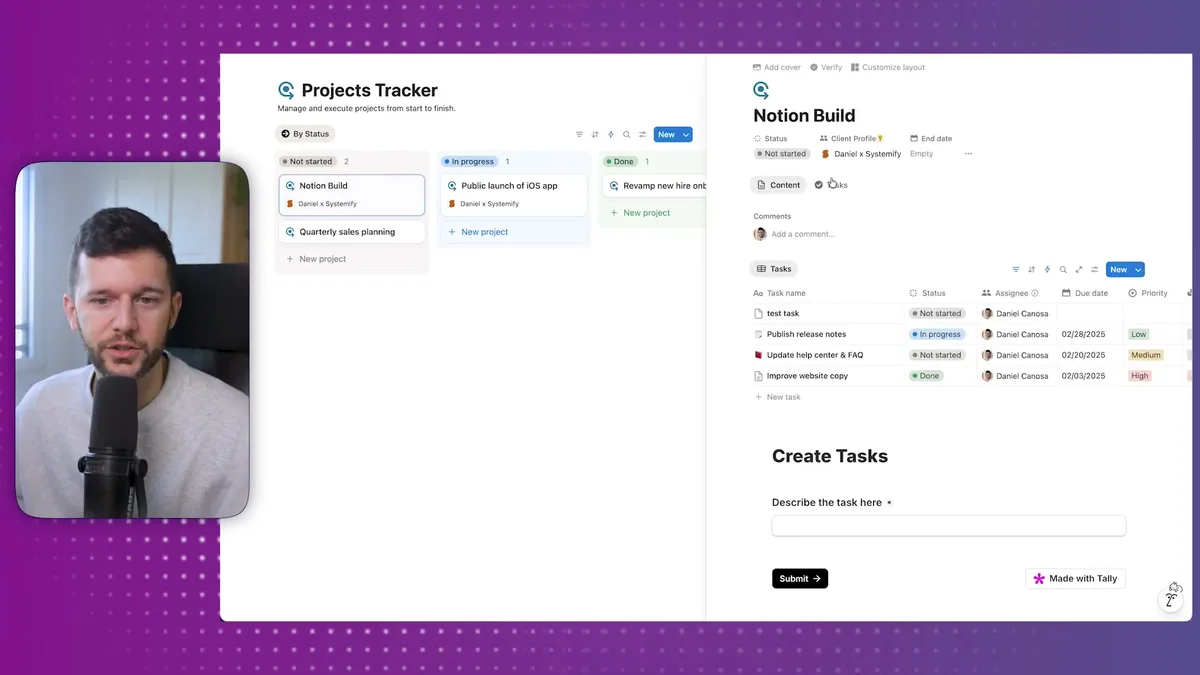
The first automation runs whenever a project gets linked to a client via the relational property.
It automatically fills the client profile field with the client's Notion profile.
The formula I use looks like this:
first(prop("Client").prop("Notion Profile"))
Basically, it takes the trigger page, goes into the client relationship, extracts the Notion profile property, and copies it over.
I always use first() because we could have multiple people in that property, and it's safer to just grab the first one.
The second automation does the same thing for tasks. Whenever a task gets linked to a project, it copies the client information from the project down to the task.
The formula is similar, but it pulls from the project relationship instead of the client relationship directly.
So now, when you add a new task to a project, the automation runs automatically and that task gets assigned to the client.
The client immediately has access to see and edit that task.
This is the backend of the system. Once this is set up, everything else flows automatically.
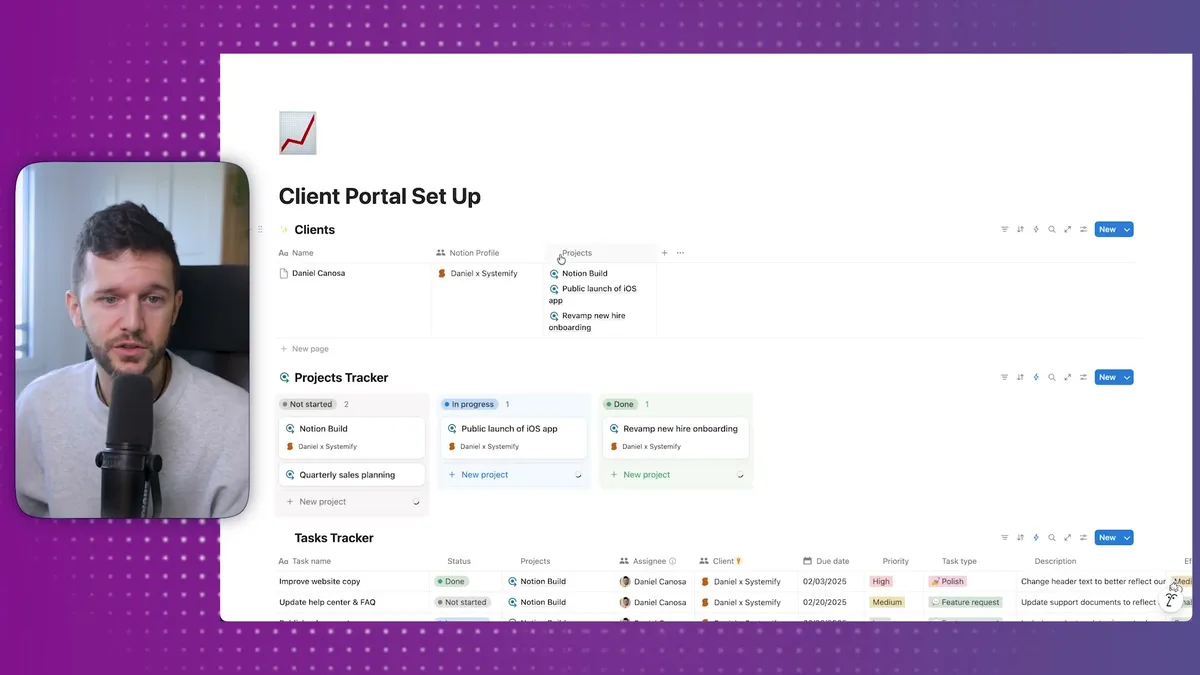
I like to create a simple page that says "Your Projects" and embed the Projects database view there.
Since clients only have access to their own projects, you can leave the view unfiltered, or maybe filter out completed projects.
To share it with a client, you just add them as a guest to this main page. That gives them access to everything you've configured through the page-level permissions.
Bear in mind, you need to add the client as a guest to your workspace before you can use their profile in the person properties.
Let me show you how this looks from both perspectives.
On the left, that's my view as the agency owner. On the right, that's what the client sees when they log into Notion.
The client sees their profile, their tasks, and can update statuses directly.
But there's one limitation. Clients can edit existing tasks, but they can't create new ones through the Notion interface.
This is where we need to get creative with a third-party form solution.
Adding Task Creation Forms for Clients
If you want to go the extra step and let clients create their own tasks, you'll need to use a form tool like Tally.
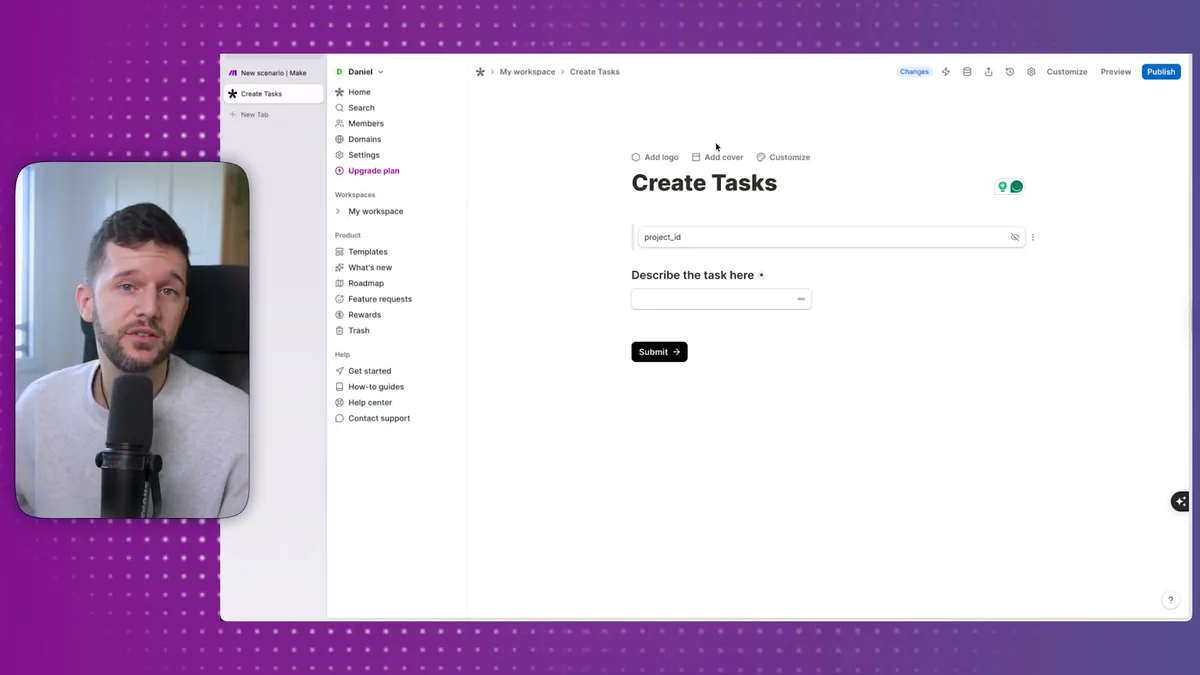
The form setup is pretty straightforward. You need two fields: a hidden project ID field and a task description field.
The project ID needs to be hidden because we're going to prefill it automatically based on which project the client is viewing.
Here's the workflow: Client fills out the form, submits it, and Make.com automation picks it up and creates the task in Notion.
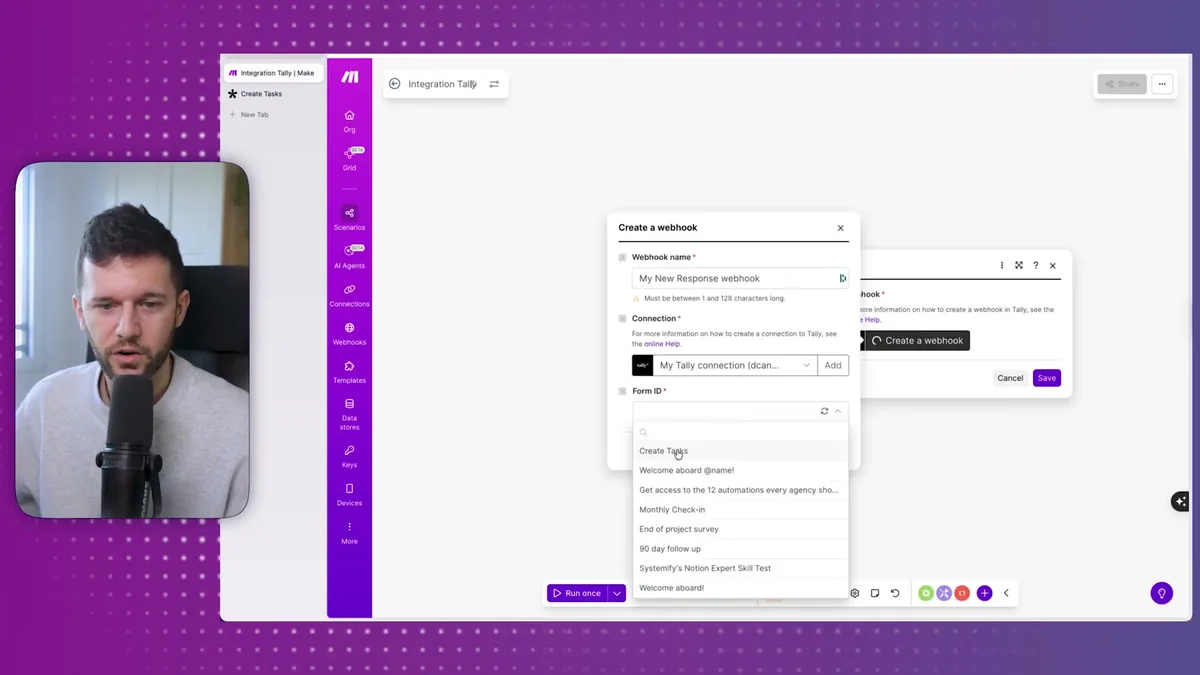
In Make, you set up a Tally watch for new responses, create a webhook, and point it to your task creation form.
The automation is simple. When a form gets submitted, Make creates a new item in your Tasks database.
It maps the task description from the form and links it to the project using the project ID.
You can set default values like "Not Started" status and assign it to yourself automatically.
Now, here's the clever part. You need each embedded form to know which project it belongs to.
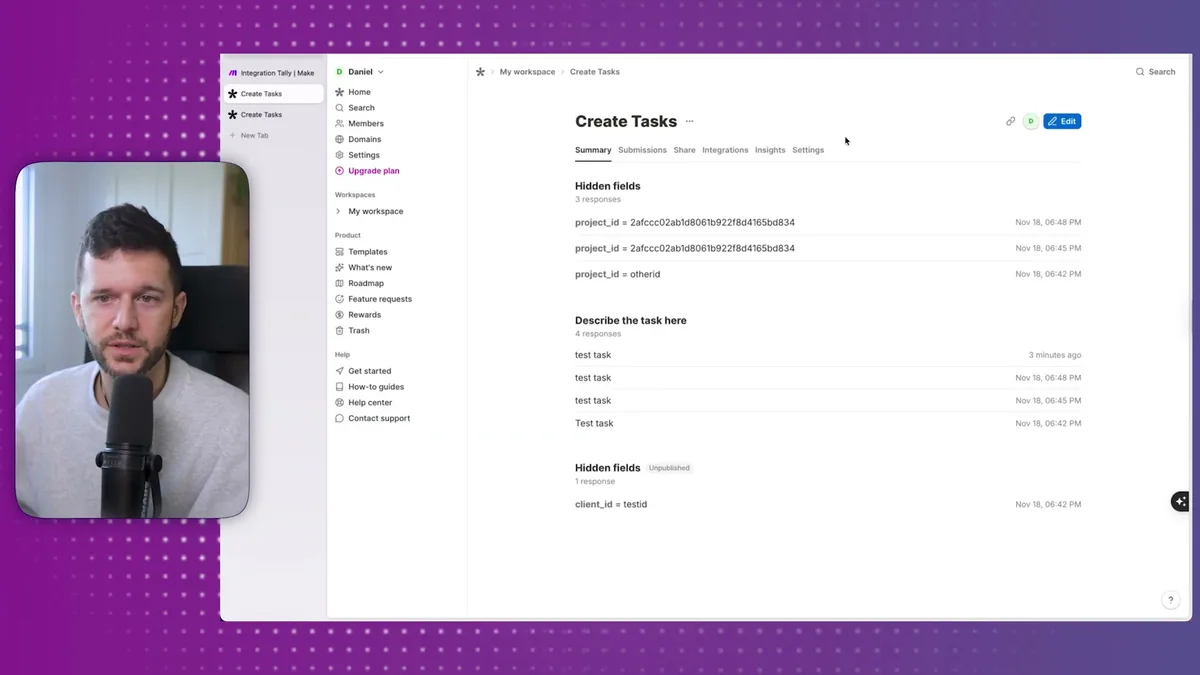
I created a formula that builds the embed URL dynamically: [form URL]?project_id=[project ID]
You'll need to copy this URL for each project and embed it in the project page.
The result is pretty smooth. Client opens their project, sees the form at the bottom, describes their new task, and hits submit.
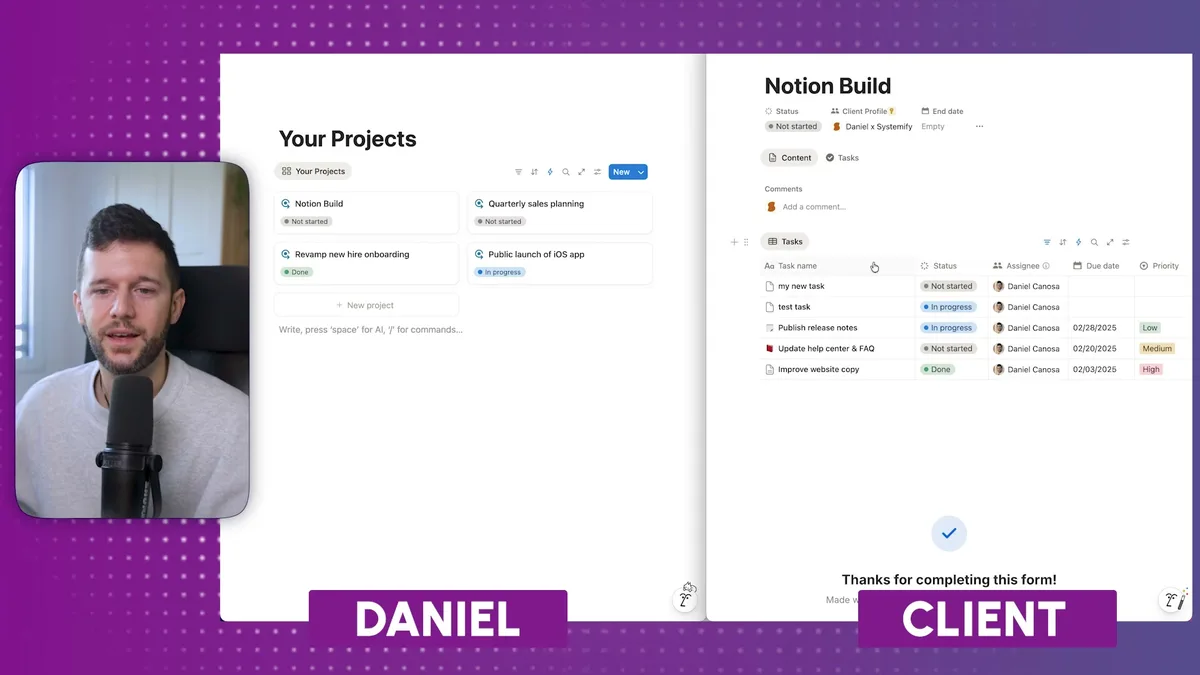
The Make automation creates the task and links it to the project. The Notion automation kicks in and assigns the client to the task.
Suddenly, the client can see their newly created task in the portal.
The only annoying thing is that clients need to refresh the page to submit multiple tasks. The form doesn't reset automatically after submission.
But honestly, that's a minor inconvenience compared to the hours you'll save not writing weekly update emails.
I'm genuinely excited about implementing this across my client workspaces.
I've lost clients in the past because we didn't have a good client portal solution, and this changes everything.
If one client portal saves you just one weekly email, it's already worth the setup time.
And bear in mind, this scales. Once you have the system built, adding new clients is just a matter of copying the template and plugging in their information.
The automation handles everything else.
This is not all rainbows. You'll need to maintain the Make automations, handle form submissions, and occasionally troubleshoot access issues.
But compared to manual client updates, it's a massive time saver and makes you look more professional in the process.
Your clients get real-time visibility into their projects, and you get your time back to focus on actual work instead of status emails.
Ready to see where your business stands with AI and automation? Take our AI Readiness Scorecard to find out.
Frequently Asked Questions
Do my clients need a Notion account to use the client portal?
Yes, clients need to be added as guests to your Notion workspace. They can create a free Notion account if they do not already have one. Once added as a guest, their profile becomes available as a person property, which is required for page-level access to work.
Can clients accidentally see other clients' projects or tasks?
No, as long as you have page-level access configured correctly. Each database entry is only visible to the person listed in its person property. Client A will only see projects and tasks where their profile is assigned. Other clients' data is completely hidden from their view.
Is there a way for clients to create new tasks without using a third-party form?
Currently, Notion's page-level access does not allow guests to create new database entries directly through the Notion interface. The workaround is embedding a Tally form (or similar tool) in the project page and connecting it to Make.com, which creates the task in Notion on behalf of the client. This adds a small setup step but works reliably.
Get more like this in your inbox
AI implementation insights for service business founders. No fluff.